Docker 部署 Seata 分布式事务
在使用 Docker 部署 Seata 并与 Nacos 配置中心结合时,你可以通过以下步骤来实现。Seata 是一个开源的分布式事务解决方案,而 Nacos 是阿里巴巴开源的一个动态服务发现、配置和服务管理平台。
一、环境准备
- 部署好 mysql 服务
- 部署好 nacos 服务 (参考: https://www.cnblogs.com/yangyxd/p/18683228 )
二、部署 Seata
示例使用 Seata 版本 1.5.2。由于 docker 官方仓库在国内已经无法使用,所以基础镜像使用了阿里云的。
2.1 创建配置
有两个方法可以拿到默认的配置文件:
2.1.1 从 Seata 开源仓库获取
可以克隆 https://gitee.com/seata-io/seata (这是国内的镜像仓库)到本地,配置文件目录在 server/src/main/resources 中。
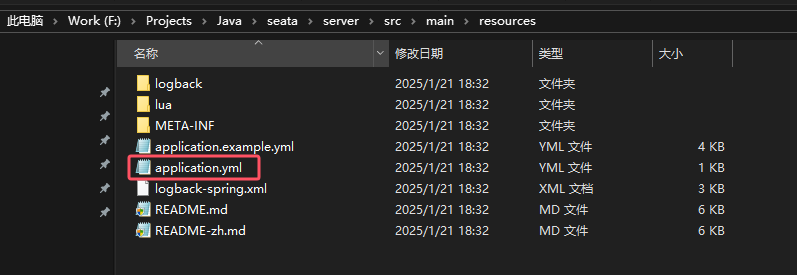
2.1.2 从容器中获取
- 拉取镜像
|
1 |
docker pull ccr.ccs.tencentyun.com/shc-infrastructure/seata-server:1.5.2 |
- 启动容器 (只是为了拿配置)
|
1 2 3 |
docker run -d -p 8091:8091 -p 7091:7091 --name seata-server ccr.ccs.tencentyun.com/shc-infrastructure/seata-server:1.5.2 mkdir -p /docker-app/seata/config docker cp seata-server:/seata-server/resources /docker-app/seata/config |
这里就可以在宿主机的 /docker-app/seata/config 有以下文件了:
|
1 |
application.example.yml application.yml banner.txt io logback logback-spring.xml lua META-INF README.md README-zh.md |
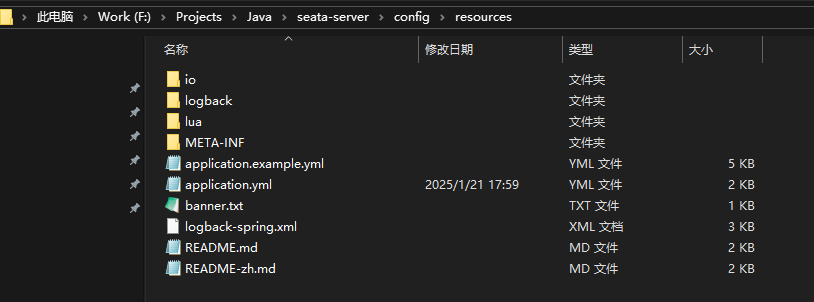
2.2 获取 Seata 配置集并存入 nacos
我们从 seata 仓库中获取 config.txt,并修改其中 mysql 数据库配置。
|
1 |
https://gitee.com/seata-io/seata/blob/develop/script/config-center/config.txt |
如果之前是使用 2.1.1 方式,可以直接在相应目录找到这个文件。
2.2.1 在 nacos 中创建命名空间
在 nacos 中创建命名空间 seata。
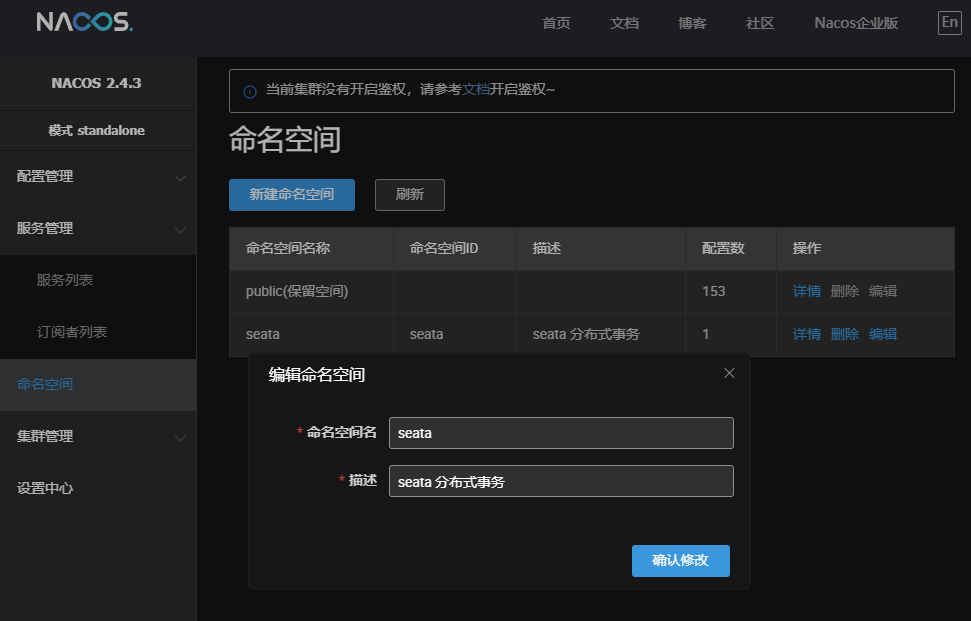
2.2.2 在 nacos 中创建配置
修改 config.txt 中的数据库配置。
|
1 2 3 4 5 6 7 8 9 |
... # 使用db而不是默认的file store.mode=db # 修改数据库配置信息,这里的数据库后面会导入 (将数据库的账号密码及名字改对) store.db.driverClassName=com.mysql.jdbc.Driver store.db.url=jdbc:mysql://172.17.0.1:3306/seata?useUnicode=true&rewriteBatchedStatements=true store.db.user=root store.db.password=123456 ... |
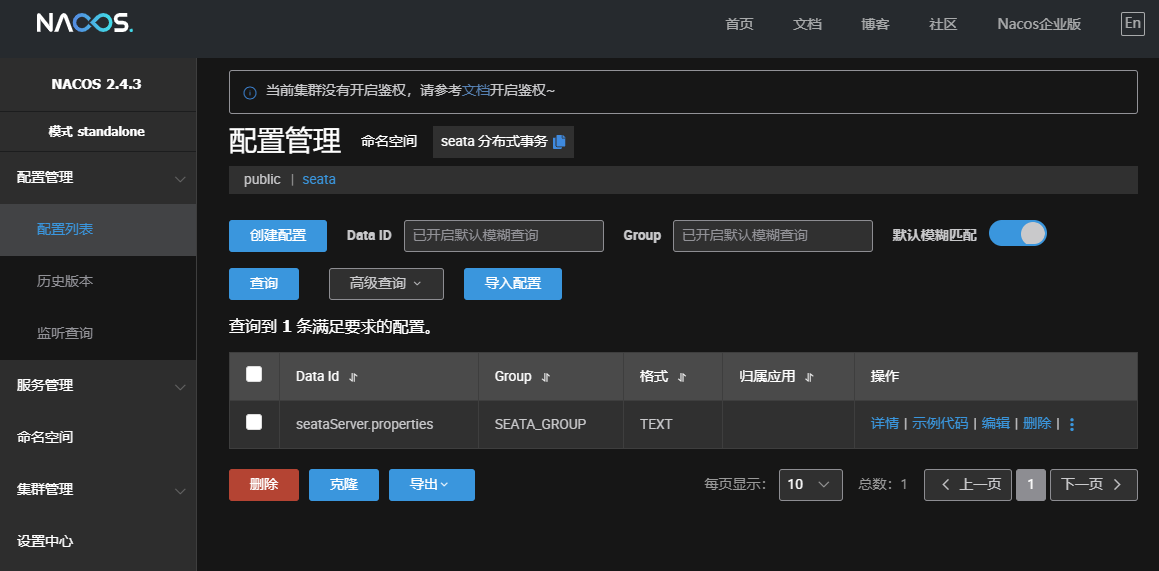
在 nacos 配置管理中,给命名空间 seata 中添加配置 seataServer.properties , Group 设置为 SEATA_GROUP,并将 config.txt 的内容全部复制进来:
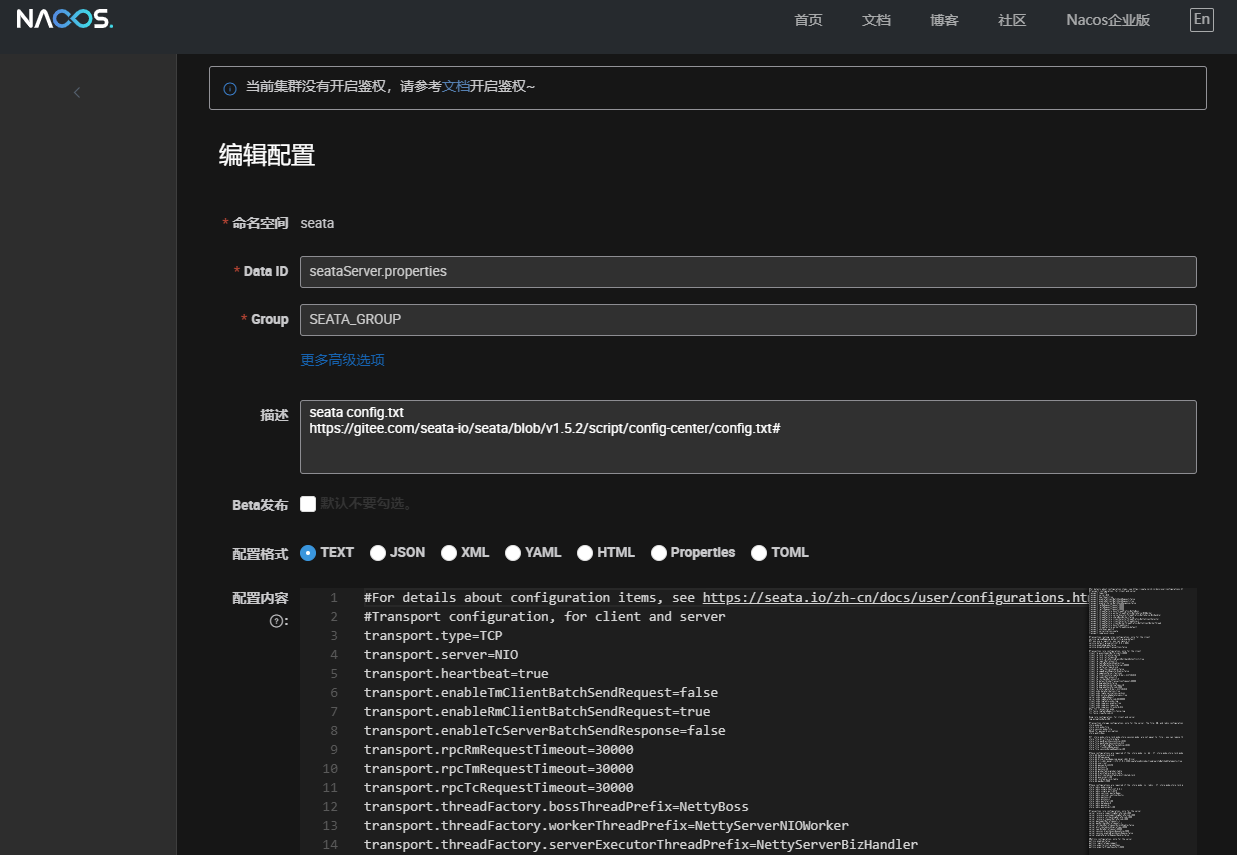
2.3 数据库初始化
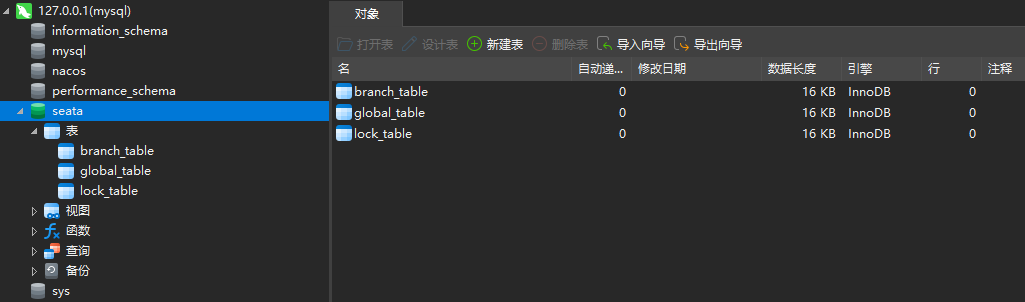
在上面的 2.2.2 中我们指定了数据库,所以我们需要创建一个 seata 的数据库:
|
1 |
https://gitee.com/seata-io/seata/blob/develop/script/server/db/mysql.sql |
执行这个 sql 脚本进行数据库初始化。
2.4 配置 application.yml
请参考下面的示例修改,使用 nacos 配置。需要注意的时,如果你的 nacos 不需要账号密码登录,这里就直接留空。
|
1 2 3 4 5 6 7 8 9 10 11 12 13 14 15 16 17 18 19 20 21 22 23 24 25 26 27 28 29 30 31 32 33 34 35 36 37 38 39 40 41 42 43 44 45 46 47 48 49 50 51 52 53 54 55 |
server: port: 7091 spring: application: name: seata-server # 在nacos中配置的seata-server的名称 logging: config: classpath:logback-spring.xml file: path: ${user.home}/logs/seata extend: logstash-appender: destination: 127.0.0.1:4560 kafka-appender: bootstrap-servers: 127.0.0.1:9092 topic: logback_to_logstash console: user: username: seata password: seata seata: config: # support: nacos, consul, apollo, zk, etcd3 type: nacos # 使用nacos作为配置中心 nacos: server-addr: 172.17.0.1:8848 # seata访问nacos ,属于容器与容器的访问 group: SEATA_GROUP # 指定配置文件在 nacos 中所属的分组 namespace: seata # 指定配置文件在 nacos 中的命名空间 username: nacos password: nacos data-id: seataServer.properties # 指定配置文件在 nacos 中的名称 registry: # support: nacos, eureka, redis, zk, consul, etcd3, sofa type: nacos nacos: # 同register application: seata-server server-addr: 172.17.0.1:8848 group: SEATA_GROUP namespace: seata cluster: default username: nacos password: nacos store: # support: file 、 db 、 redis mode: file # server: # service-port: 8091 #If not configured, the default is '${server.port} + 1000' security: secretKey: SeataSecretKey0c382ef121d778043159209298fd40bf3850a017 tokenValidityInMilliseconds: 1800000 ignore: urls: /,/**/*.css,/**/*.js,/**/*.html,/**/*.map,/**/*.svg,/**/*.png,/**/*.ico,/console-fe/public/**,/api/v1/auth/login |
2.5 启动 Seata
如果已经启动过容器(比如之前为了拿配置),先删除:
|
1 2 |
docker stop seata-server docker rm seata-server |
启动容器:
|
1 |
docker run --name seata-server --restart=always -i -t -d -p 8091:8091 -p 7091:7091 -e SEATA_IP=172.29.61.12 -v /docker-app/seata/config/resources:/seata-server/resources ccr.ccs.tencentyun.com/shc-infrastructure/seata-server:1.5.2 |
注意:
- 因为 Seata 是部署在容器中,那在真机上想要访问,seata-server 暴露给 nacos 注册中心的地址应该是容器映射到真机后实际能访问的IP地址,所以
SEATA_IP要设置成这个IP地址。 -v /docker-app/seata/config/resources:/seata-server/resources是将本地存放的配置文件映射到容器中。但如果是在 windows 中使用docker.desktop的WSL,则这样的映射是无效的,需要将application.yml复制到容器中进行替换:
|
1 2 3 4 5 6 |
# 启动容器(不建立配置映射) docker run --name seata-server --restart=always -i -t -d -p 8091:8091 -p 7091:7091 -e SEATA_IP=172.29.61.12 ccr.ccs.tencentyun.com/shc-infrastructure/seata-server:1.5.2 # 复制本地 application.yml 到容器中进行替换 (假设路径是 F:\seata-server\config\resources\application.yml ) docker cp F:\seata-server\config\resources\application.yml seata-server:/seata-server/resources/application.yml # 重启容器 docker restart seata-server |
2.6 部署完成
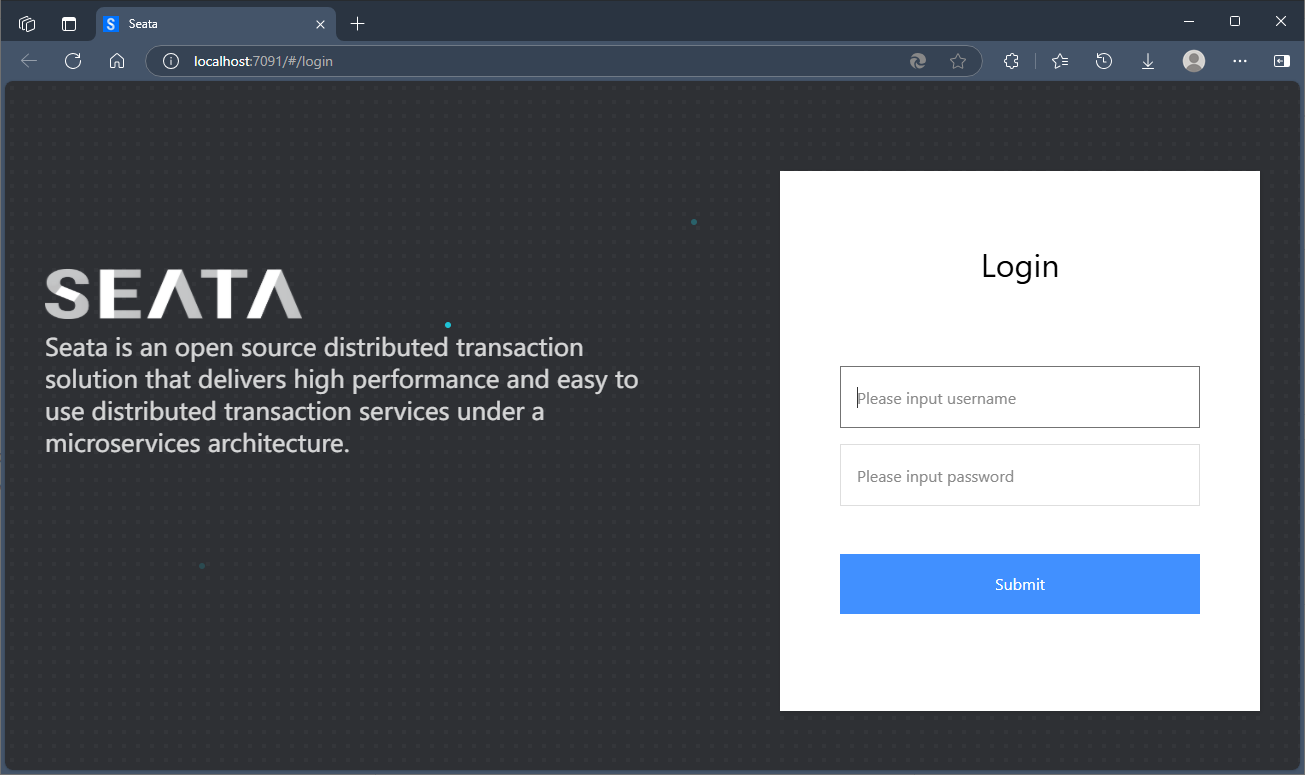
容器启动成功后,如果报错,请根据报错信息,检查数据库、nacos等配置是否正确。启动成功后,就可以在浏览器中查看状态了:
默认的用户名和密码都是 seata 。
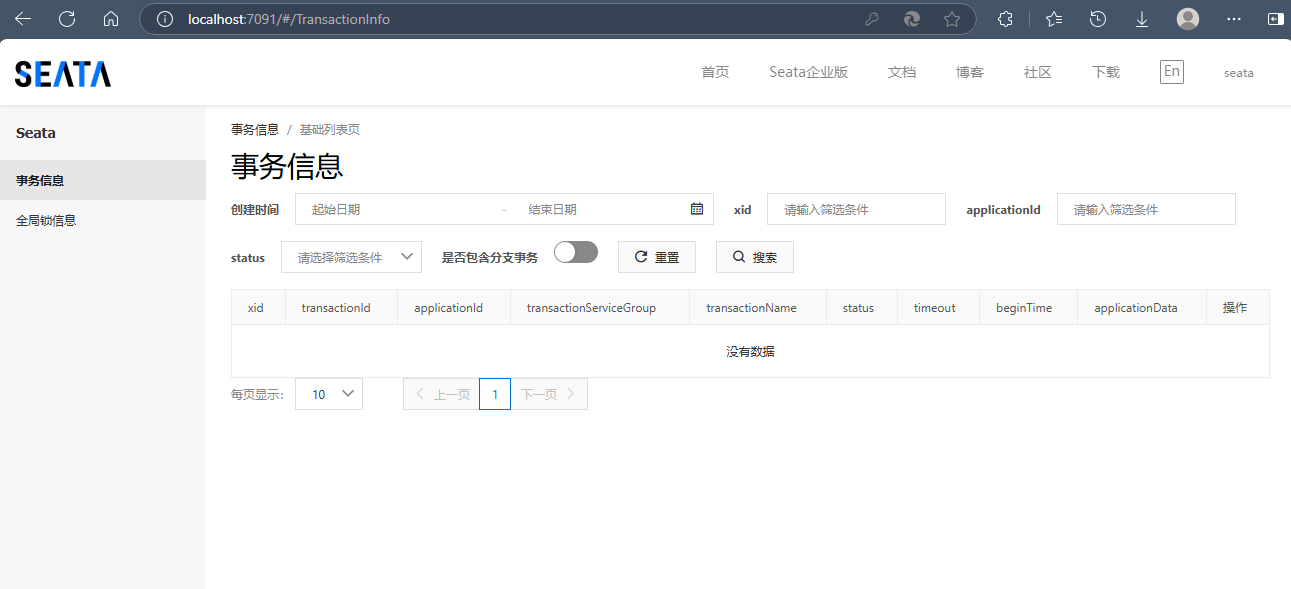
登录后:
from:https://www.cnblogs.com/yangyxd/p/18684284